Introduction
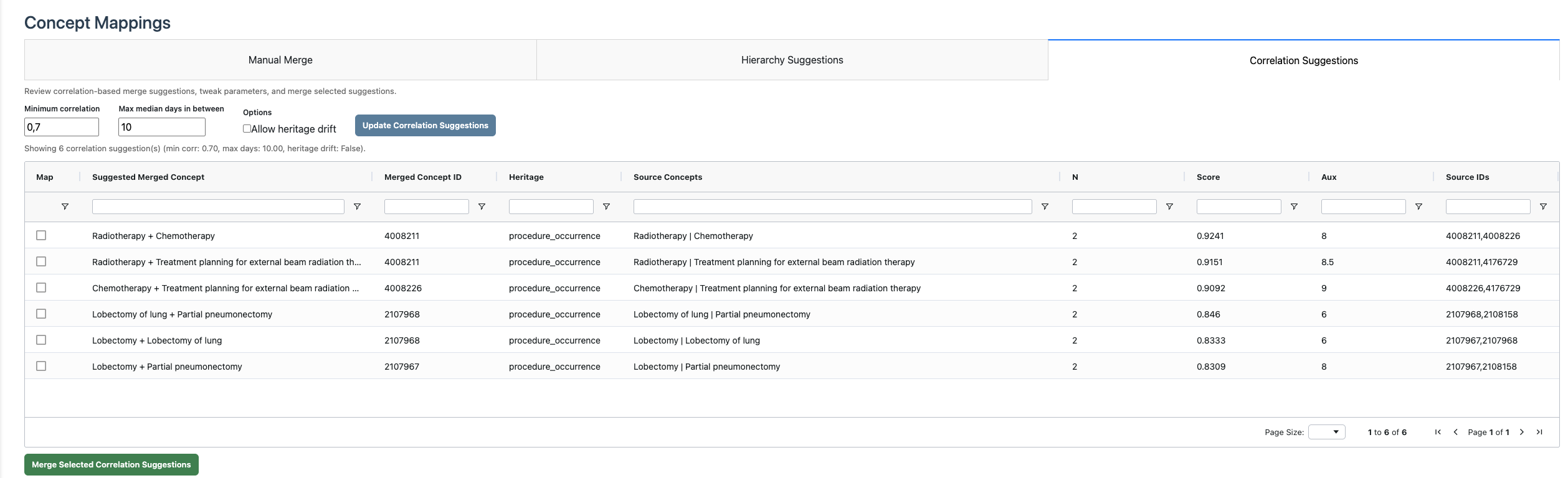
The Mappings tab is used to combine concepts and audit mapping decisions. Merge actions are available in patient mode.
The example below creates a small hierarchy-based mapping table from
the bundled lc500 study. These are the kinds of candidate
merges that can later be reviewed in the Mappings tab.
if (requireNamespace("nanoparquet", quietly = TRUE)) {
  studyDir <- system.file("example", "st", package = "CohortContrast")
  study <- CohortContrast::loadCohortContrastStudy("lc500", pathToResults = studyDir)

  maxMinDataFrame <- data.frame(
    descendant_concept_id = c(4008211, 4176729, 2107967, 2107968, 2108158, 32280, 32815),
    maximum_minimal_separation = c(0, 1, 0, 1, 1, 0, 1)
  )

  mappingTable <- CohortContrast::generateMappingTable(
    abstractionLevel = 0,
    data = study,
    maxMinDataFrame = maxMinDataFrame
  )
  utils::head(mappingTable, 4)
}
#> ---------------------------------
#> Generating mapping table list ...
#> ---------------------------------
#> Timestamp:  2026-04-22 17:42:27
#>
#> ----------------------------------------------
#> Generating mapping for abstraction level 1 ...
#> ----------------------------------------------
#> Timestamp:  2026-04-22 17:42:27
#>   CONCEPT_ID                                           CONCEPT_NAME
#> 1    4176729 Treatment planning for external beam radiation therapy
#> 2    2107968                                      Lobectomy of lung
#> 3    2108158                                  Partial pneumonectomy
#> 4      32815                                      Death Certificate
#>   NEW_CONCEPT_ID NEW_CONCEPT_NAME ABSTRACTION_LEVEL      TYPE
#> 1        4008211     Radiotherapy                 0 hierarchy
#> 2        2107967        Lobectomy                 0 hierarchy
#> 3        2107967        Lobectomy                 0 hierarchy
#> 4          32280            Death                 0 hierarchy
Each row links a more specific concept to a broader replacement concept, together with the mapping type and abstraction level used to generate the suggestion.
Manual Merge
Workflow:
- In Manual Merge, select concepts using the
Mapcolumn (main concepts only). - Click Merge Selected Concepts.
- Confirm
New Concept ID,New Concept Name, andHeritage. - Click Apply Merge.
Defaults in the merge form are prefilled from the most prevalent selected concept.
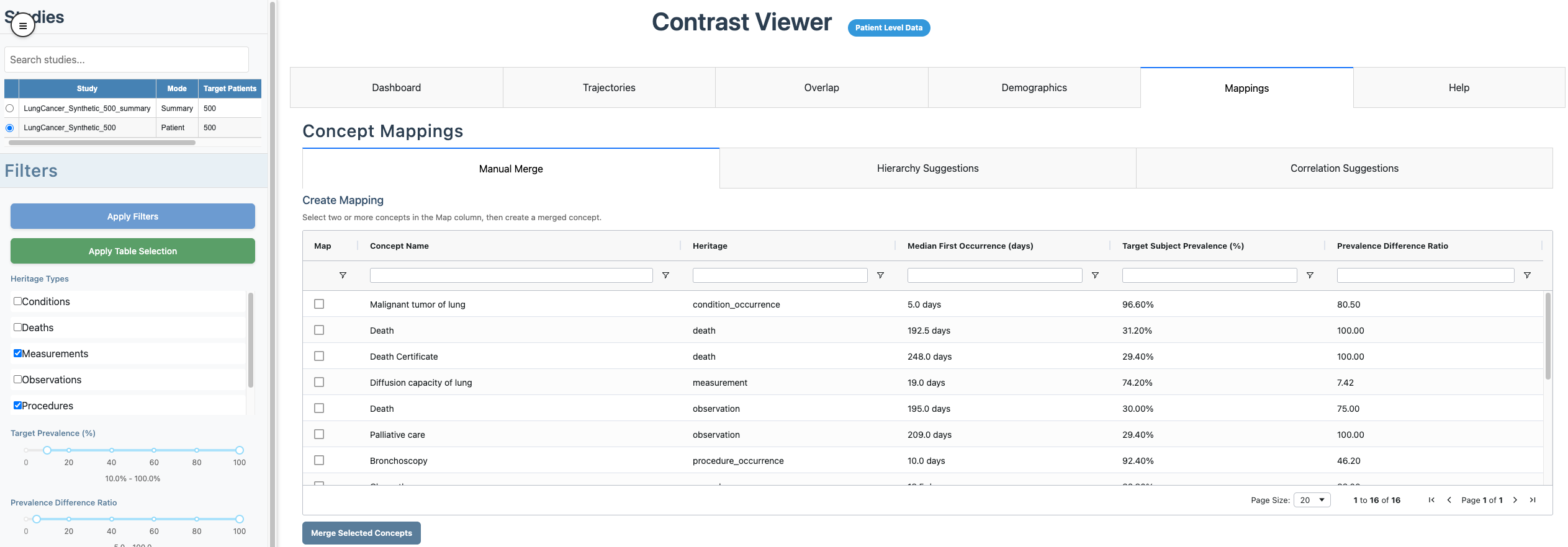
Manual merge workflow
Hierarchy Suggestions
Use hierarchy-based candidate merges:
- Set
Minimum hierarchy depth. - Optionally keep
Allow only minorsenabled. - Click Update Hierarchy Suggestions.
- Review rows and click Merge Selected Hierarchy Suggestions.
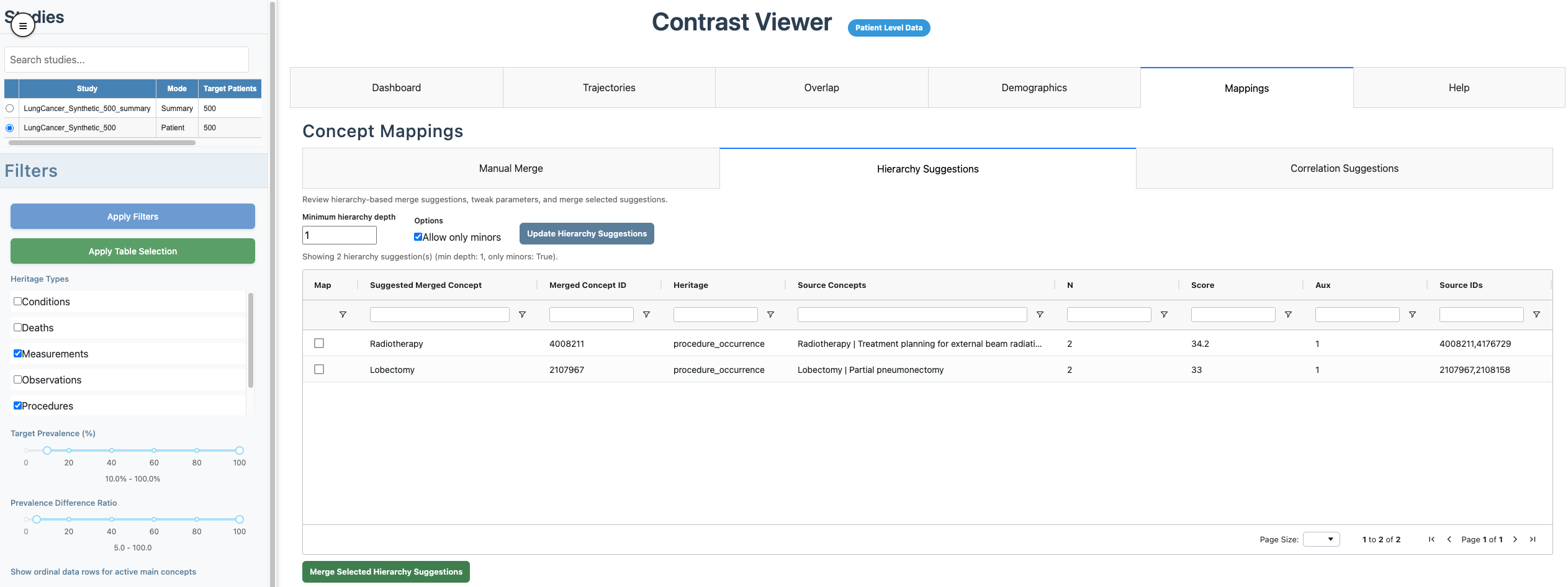
Hierarchy suggestions